The Best TV Picture Settings for Samsung, LG, Sony and Roku TV
Improve picture quality with practical starting settings for Samsung, LG, Sony and Roku TV, plus tips for movies, sports, gaming and bright rooms.
Table of Contents18 sections
- The Best TV Picture Settings for Samsung, LG, Sony and Roku TV
- There Is No Single Perfect Preset
- Brand-Specific Starting Presets
- 1. Samsung (Neo QLED, OLED, The Frame)
- 2. LG (OLED G & C Series, QNED)
- 3. Sony BRAVIA (OLED, Mini-LED)
- 4. Roku TV (TCL, Hisense, Sharp)
- Content-Specific Optimization: Movies, Sports & Gaming
- Gaming Settings: VRR, ALLM, HDR and Input Modes
- Motion Smoothing: Useful Tool or Soap-Opera Effect?
- Start with the Content, Not a Copied Calibration Chart
- The TVPro Perspective
- FAQ
- Should I use Dynamic Mode on my TV?
- Why does my OLED TV look unusually dim?
- Should sharpness be set to 50 or 100?
- Why do my picture settings change on their own?
- What is Filmmaker Mode?
The Best TV Picture Settings for Samsung, LG, Sony and Roku TV
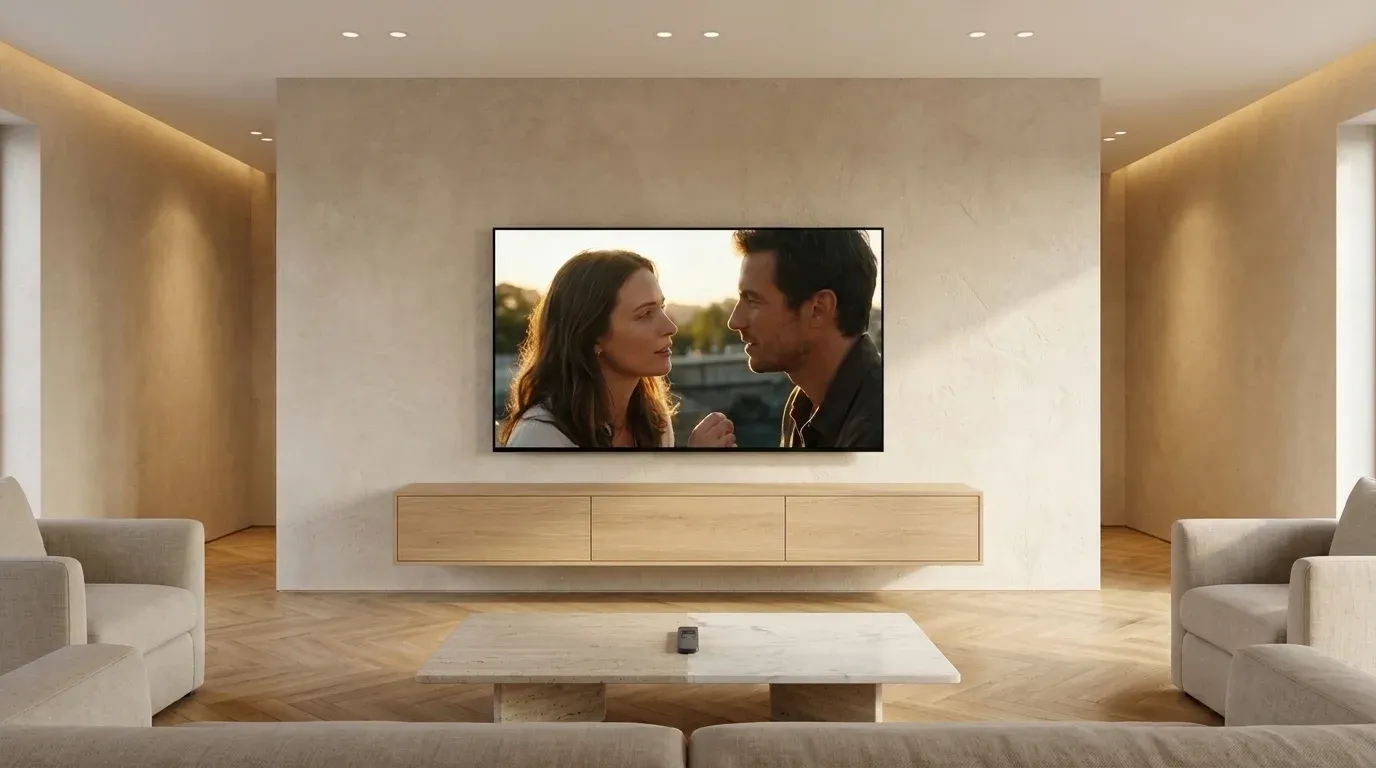
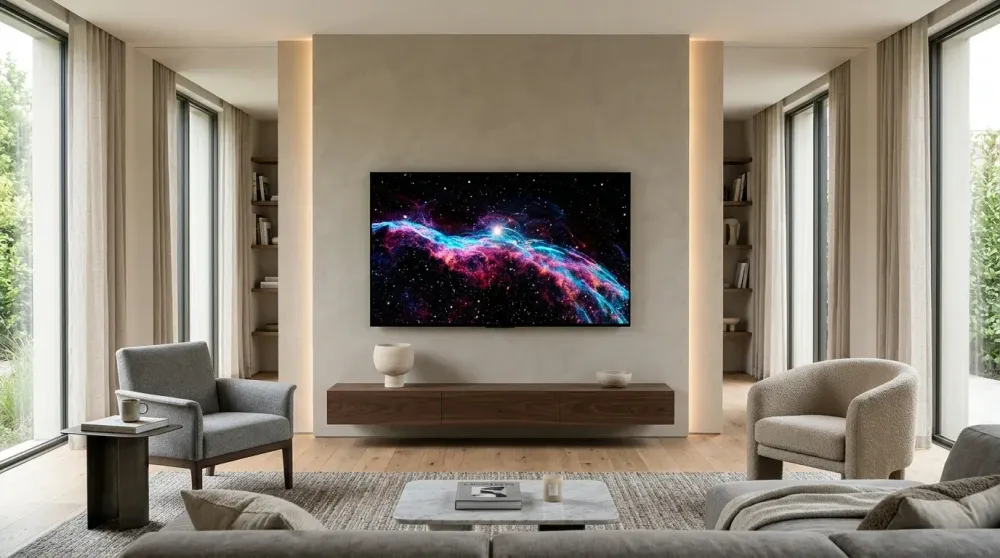
Suggested Alt Text: luxury living room featuring flush mounted 75 inch 4k tv calibrated with natural cinematic colors
There Is No Single Perfect Preset
A modern television can look dramatically different depending on room ambient lighting, the incoming video signal, which HDMI input is selected, and even which streaming app is playing.
The secret to great picture quality is not blindly copying a complex numerical calibration chart from the internet. Instead, the most practical approach is starting with your manufacturer's most accurate preset mode—such as Filmmaker Mode or Cinema Mode—and making small, thoughtful adjustments tailored to your room's actual viewing conditions.
Ready for Professional Setup?
Get a free, no-obligation estimate from local certified technicians in the Greater Houston Area.
Brand-Specific Starting Presets
Modern smart TVs from Samsung, LG, Sony, and Roku include specialized picture modes out of the box. Here is how to configure each brand for immediate, lifelike results:
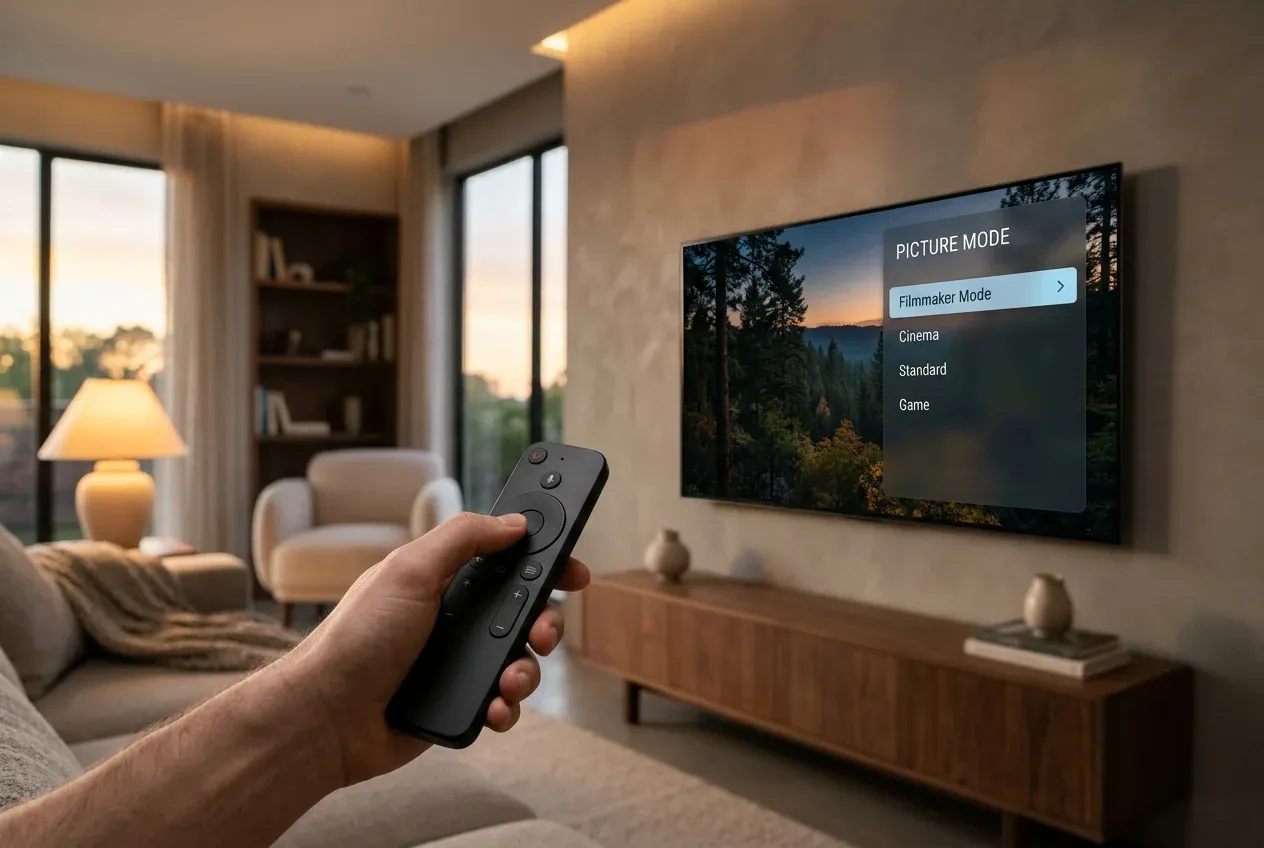
Suggested Alt Text: adjusting tv picture mode settings on screen menu with remote control in living room
1. Samsung (Neo QLED, OLED, The Frame)
- Recommended Modes: For movies and series, select Movie or Filmmaker Mode. In sunlit family rooms, Standard Mode provides extra luminance.
- Key Adjustments: Avoid Dynamic Mode, which turns skin tones neon and crushes highlights. Set Color Tone to Warm 1 or Warm 2 to remove harsh blue tints.
- Motion Settings: Navigate to Picture Clarity Settings. Turn off Auto and set to Custom (Judder Reduction: 2–3, Blur Reduction: 8–10) to eliminate stutter without triggering the artificial soap-opera effect.
2. LG (OLED G & C Series, QNED)
- Recommended Modes: Choose Cinema, Filmmaker Mode, or ISF Expert (Dark Space) for evening viewing; use ISF Expert (Bright Space) for daytime.
- Important Check: If your new LG OLED looks unexpectedly dim, navigate to Settings > General > Energy Saving and turn Energy Saving Step completely Off. Modern eco-sensors often throttle OLED brightness unnecessarily.
- Dynamic Tone Mapping: For HDR10 movies, set Dynamic Tone Mapping to On for balanced highlight details.
3. Sony BRAVIA (OLED, Mini-LED)
- Recommended Modes: Sony processors are renowned for factory color accuracy. Select Custom or Cinema (or Professional on newer models).
- Key Adjustments: Sony’s Motionflow processing is the smoothest in the industry. For movies, set Motionflow to Custom with Smoothness on 1 and Clearness on Min to preserve the natural 24fps cinematic film cadence.
4. Roku TV (TCL, Hisense, Sharp)
- Recommended Modes: Press the Asterisk button (``) while content is playing. Select Picture Settings and change Picture Mode* to Movie.
- Per-Input Memory: Roku remembers settings individually per HDMI port. Always configure HDMI 1 (e.g., cable box) and HDMI 2 (e.g., Apple TV or game console) separately.
Content-Specific Optimization: Movies, Sports & Gaming
Your television shouldn't display an NFL football game with the exact same settings as a dark suspense thriller:
- For Movies & Prestige Drama: Prioritize natural color accuracy, director-intended frame rates (24fps), and deep shadow detail. Turn off edge sharpening and aggressive dynamic contrast.
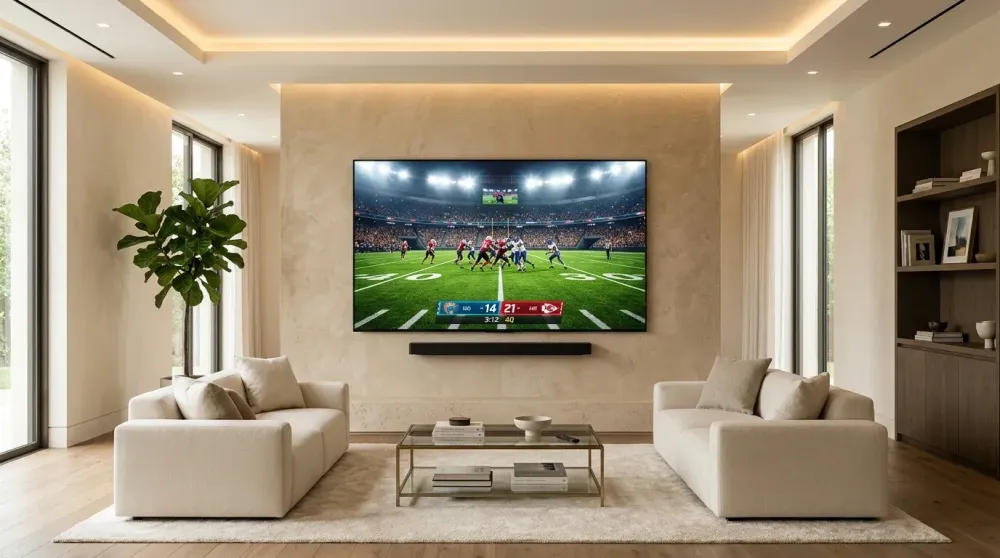
- For Live Sports: Prioritize overall screen luminance, fast pixel response, and natural grass greens. Mild motion compensation helps keep fast-moving footballs and hockey pucks sharp during fast camera pans.
- For Bright Sunlit Rooms: Boost the panel's backlight / OLED pixel brightness and set Gamma to 2.2 rather than dark-room 2.4.
Gaming Settings: VRR, ALLM, HDR and Input Modes
Modern consoles like the PlayStation 5, Xbox Series X, and high-end PCs demand specialized low-latency processing to remain competitive.
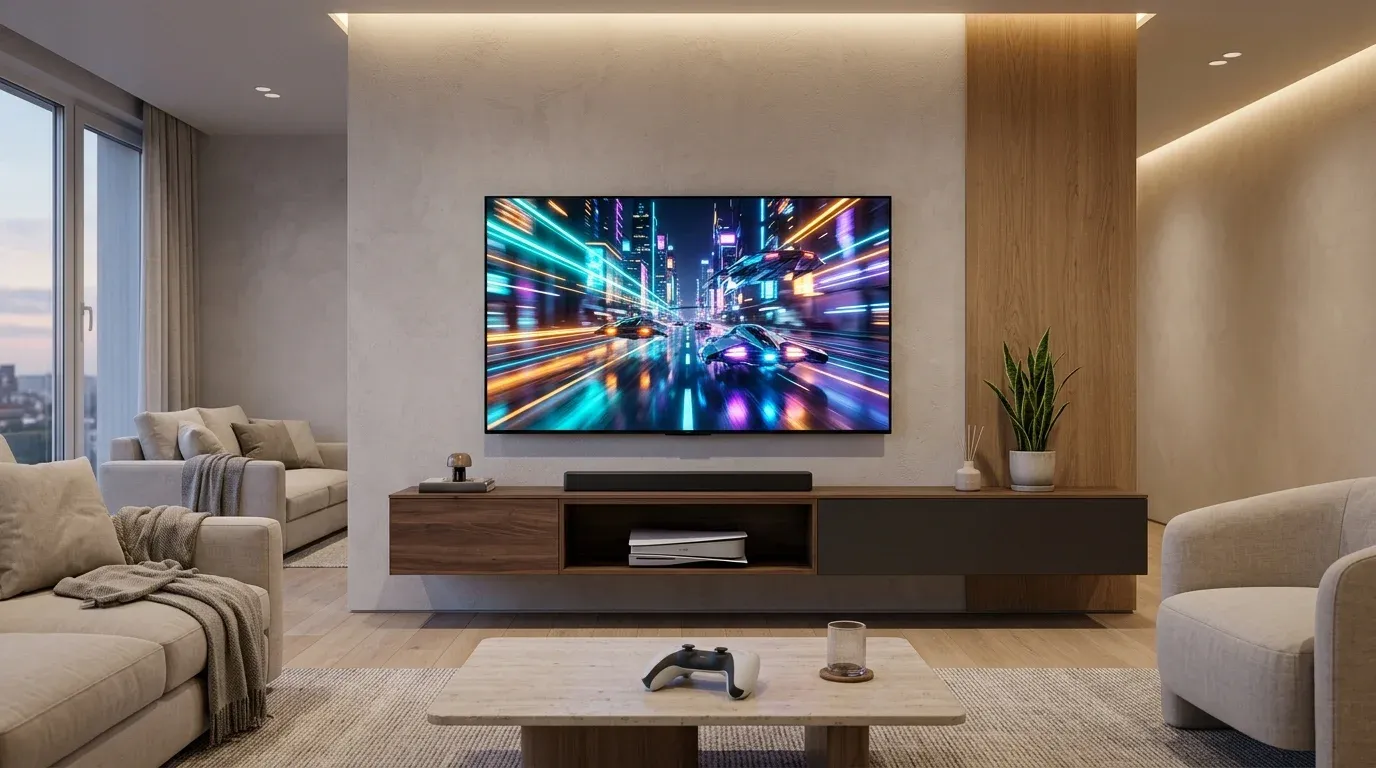
Suggested Alt Text: wall mounted oled television optimized in game mode with low latency vrr and hdr enabled
When gaming, standard picture modes can introduce 80 to 100 milliseconds of input delay. Optimize your console experience with these settings:
- Game Optimizer / Game Mode: Reduces input lag to sub-10ms by bypassing heavy post-processing filters.
- Variable Refresh Rate (VRR): Enable HDMI Forum VRR, G-Sync, or FreeSync to eliminate screen tearing during frame-rate fluctuations.
- Auto Low Latency Mode (ALLM): Allows your console to automatically trigger Game Mode when launching a game and switch back to Cinema Mode when playing a 4K Blu-ray or streaming Netflix.
- Enhanced HDMI Ports: On many Sony and Samsung TVs, you must manually enter External Device Manager and change the HDMI port from Standard to Enhanced Format (4K120 / 8K).
Motion Smoothing: Useful Tool or Soap-Opera Effect?
Motion interpolation—known commercially as Auto Motion Plus, TruMotion, or Motionflow—inserts artificially generated frames between original film frames.
- Why People Dislike It: In movies shot at traditional 24 frames per second, excessive smoothing removes the filmic texture, making cinematic Hollywood movies look like cheap, videotaped soap operas.
- How to Use It Correctly: Don't just leave it on "Auto." For movies, disable it or set De-Judder to 0–2. For fast live sports broadcasts, dial De-Blur up to 8–10 to keep high-speed action readable without distorting the athletes.
Start with the Content, Not a Copied Calibration Chart
Modern televisions maintain separate, independent setting banks for:
- SDR (Standard Dynamic Range) — Traditional cable, sports broadcasts, and YouTube.
- HDR10 — Standard 4K streaming movies and video games.
- Dolby Vision — Premium streaming titles on Netflix, Apple TV+, and Disney+.
Whenever your screen detects a new HDR or Dolby Vision handshake, the picture mode menu changes automatically. Make sure to configure your favorite preset (like Dolby Vision Cinema Home or HDR Filmmaker Mode) while that specific format is playing on screen.
The TVPro Perspective
After mounting a television, our technicians always verify signal inputs, test connected devices, and confirm your screen is operating on optimal initial picture presets.
You shouldn't have to spend your weekend deciphering confusing menus or staring at distorted neon retail demo modes. TVPro combines laser-level mounting, code-compliant wire concealment, soundbar acoustic alignment, and practical picture configuration so your entertainment setup looks right the moment we hand you the remote.
️ Ready for a Flawless TV Installation?
Need certified TV mounting, custom recessed media boxes, and 100% hidden wires? TVPro delivers professional installations with same-day appointments available.
FAQ
Should I use Dynamic Mode on my TV?
Dynamic Mode is engineered for brightly lit retail showrooms with fluorescent lighting. In home environments, it oversaturates colors, turns human skin orange or pink, and crushes fine highlight detail. Use Standard or Cinema/Filmmaker instead.
Why does my OLED TV look unusually dim?
Most often, this is caused by aggressive eco-sensors. Open your TV’s settings menu, look for Energy Saving or Eco Solution, and disable automatic ambient light dimming.
Should sharpness be set to 50 or 100?
No. On most digital TVs, "0" or "10" is the neutral baseline. Pushing sharpness higher does not add genuine resolution—it merely draws artificial white halos around text and edges, introducing visual noise.
Why do my picture settings change on their own?
Your TV automatically switches picture profiles when transitioning between standard SDR content, HDR10, and Dolby Vision. Each profile stores its own independent brightness, color, and contrast settings.
What is Filmmaker Mode?
Filmmaker Mode is a standardized picture preset developed by the UHD Alliance and Hollywood directors. It automatically disables artificial motion smoothing, corrects color temperature to D65 warm white, and preserves the original aspect ratio and frame rate.