The Complete Guide to Connecting Your Devices: Spectrum, DirecTV, Xfinity, Fire Stick & More
A simple, step-by-step guide to connecting Spectrum, DirecTV, Xfinity, Amazon Fire TV Stick, and soundbars to your TV with clean cable setup and troubleshooting tips.
Table of Contents18 sections
- The Complete Guide to Connecting Your Devices: Spectrum, DirecTV, Xfinity, Fire Stick & More
- General Tips Before You Start
- 1. How to Connect a Spectrum Cable Box
- 2. How to Connect a DIRECTV Receiver
- 3. How to Connect an Xfinity X1 or Flex Box
- 4. How to Connect an Amazon Fire TV Stick
- 5. How to Connect a Soundbar (HDMI ARC vs. Optical vs. Bluetooth)
- Option A: HDMI ARC / eARC (Best Option)
- Option B: Optical Audio Cable (Solid Fallback)
- Option C: Bluetooth (Wireless Connection)
- Hidden Media Devices & In-Wall Cable Concealment
- Troubleshooting Common Connection Problems
- FAQ
- What devices can TVPro connect after mounting a TV?
- Can a cable box be hidden behind a wall-mounted TV?
- How do I connect a Fire TV Stick to a wall-mounted TV?
- Why does my TV say "No Signal"?
- Can TVPro hide wires for all my devices?
The Complete Guide to Connecting Your Devices: Spectrum, DirecTV, Xfinity, Fire Stick & More
Setting up your entertainment devices the right way makes a huge difference. A clean installation, strong connection, and the correct order of devices will give you the best picture quality, reliable performance, and a smooth, hassle-free entertainment experience.
Whether you use Spectrum, DirecTV, Xfinity, Amazon Fire TV Stick, Apple TV, Roku, a gaming console, or a soundbar, this step-by-step guide from TVPro will walk you through everything you need to get your system connected perfectly.
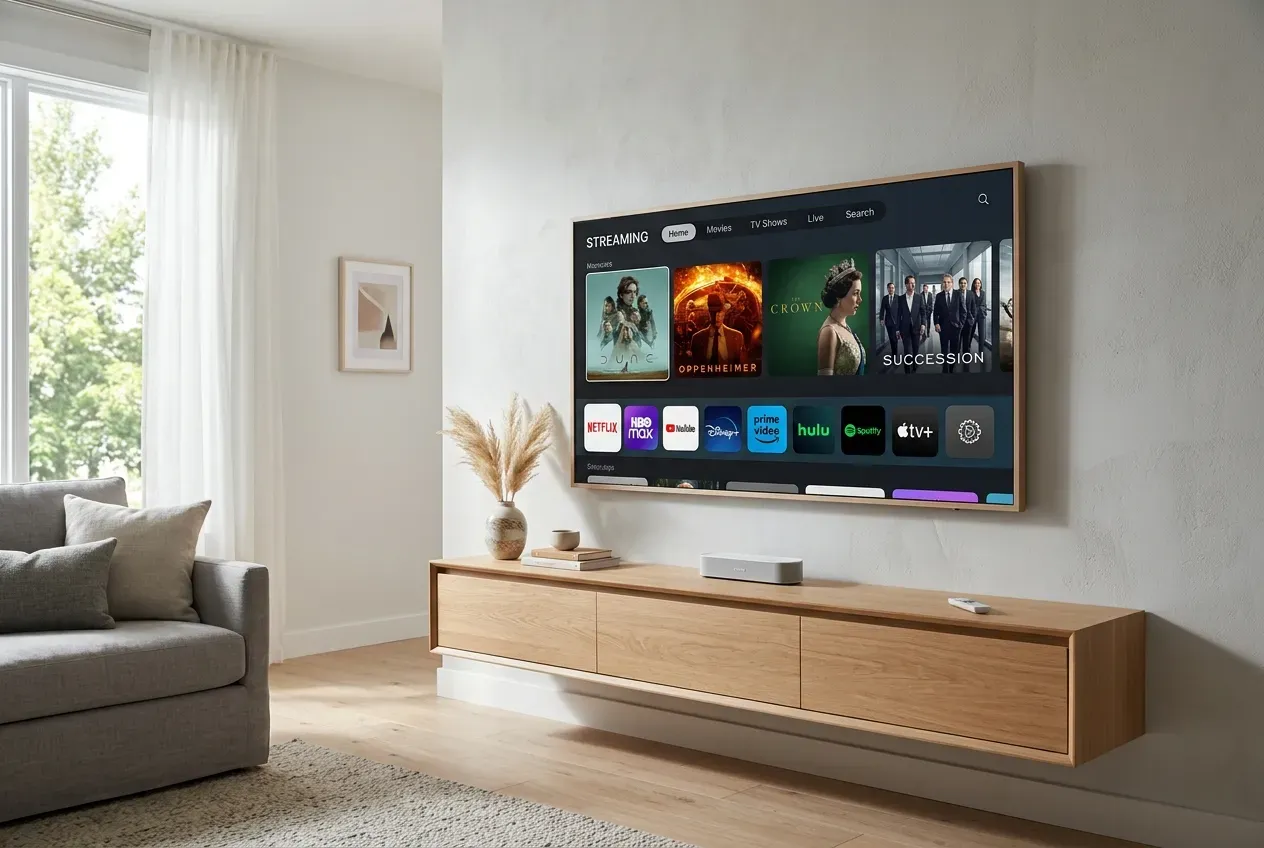
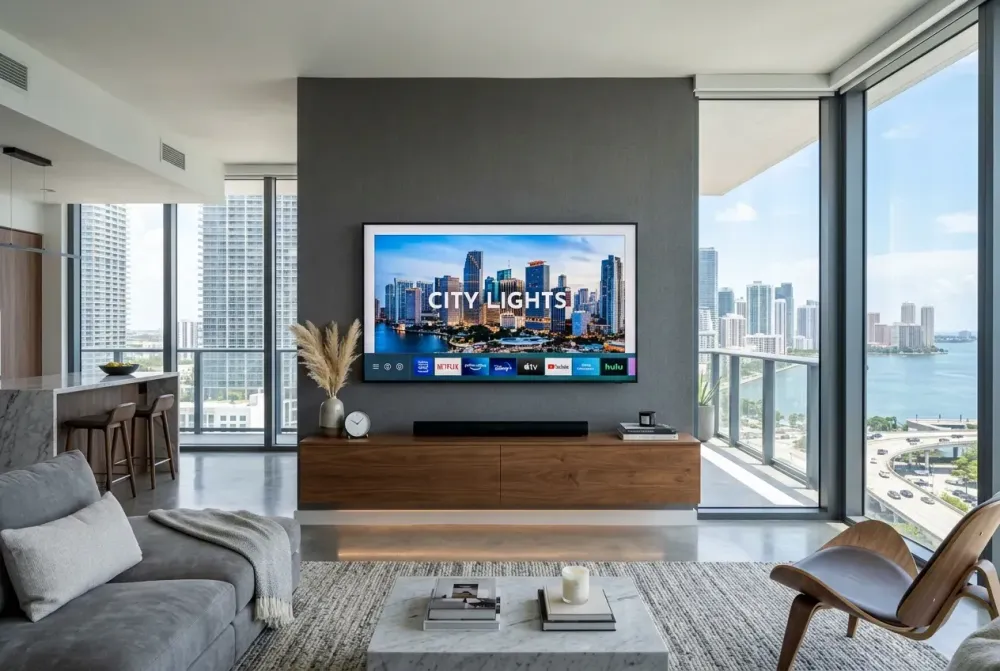
Suggested Alt Text: Modern wall-mounted smart TV displaying a clean streaming home interface above a wooden console
Ready for Professional Setup?
Get a free, no-obligation estimate from local certified technicians in the Greater Houston Area.
General Tips Before You Start
Taking a few moments to prepare before plugging in cables will save you time and frustration:
- Power Off: Ensure your TV and all electronic devices are powered off before connecting or disconnecting cables.
- Use High-Speed HDMI Cables: For 4K HDR, Dolby Vision, and high refresh rates, use HDMI 2.0 or 2.1 cables.
- Direct Connections: Connect devices directly to the TV (rather than through a soundbar or HDMI switch) for initial setup.
- Label Cables: Label your HDMI cables or note which port each device is plugged into (e.g., HDMI 1 = Cable Box, HDMI 2 = Fire Stick, HDMI 3 = ARC Soundbar).
- Keep Wi-Fi Info Handy: Have your Wi-Fi network name and password ready for streaming stick activation.
- Update After Setup: Allow devices to complete initial firmware and channel guide updates before unplugging power.
1. How to Connect a Spectrum Cable Box
For a typical Spectrum cable box setup, follow these step-by-step instructions:
- Connect the Coaxial Cable: Plug the coaxial cable from the wall outlet into the CABLE IN port on the Spectrum box.
- Connect to the TV: Connect one end of a High-Speed HDMI cable to the HDMI OUT port on the Spectrum box and the other end to an available HDMI input on your TV.
- Power It On: Plug in the power adapter and press the power button on the Spectrum receiver and remote.
- Select HDMI Input: Turn on your TV and use the TV remote to select the matching HDMI input (e.g., HDMI 1).
- Activate the Box: Visit `spectrum.net/activate` on your phone or computer, enter the on-screen code if prompted, and allow the channels and guide to load completely.
💡 Pro Tip
If the Spectrum box begins a software update or channel download upon powering on, do not unplug it. Let the process finish completely to prevent guide errors.
2. How to Connect a DIRECTV Receiver
DIRECTV setups can vary depending on whether you use a satellite receiver or a DIRECTV Gemini streaming box:
- Connect the Satellite / Network Cable: Connect the satellite coaxial cable to the SAT IN port on the DIRECTV receiver (or connect an Ethernet cable / Wi-Fi for streaming models).
- Connect to the TV: Plug an HDMI cable into the HDMI OUT port on the receiver and connect it to your TV's HDMI input.
- Power On: Connect the power cord and turn on the receiver.
- Run On-Screen Setup: Turn on the TV, select the correct HDMI input, choose your language, and follow the on-screen satellite signal setup or network activation.
- Complete Activation: If required, visit the DIRECTV activation page or contact support to confirm service activation.
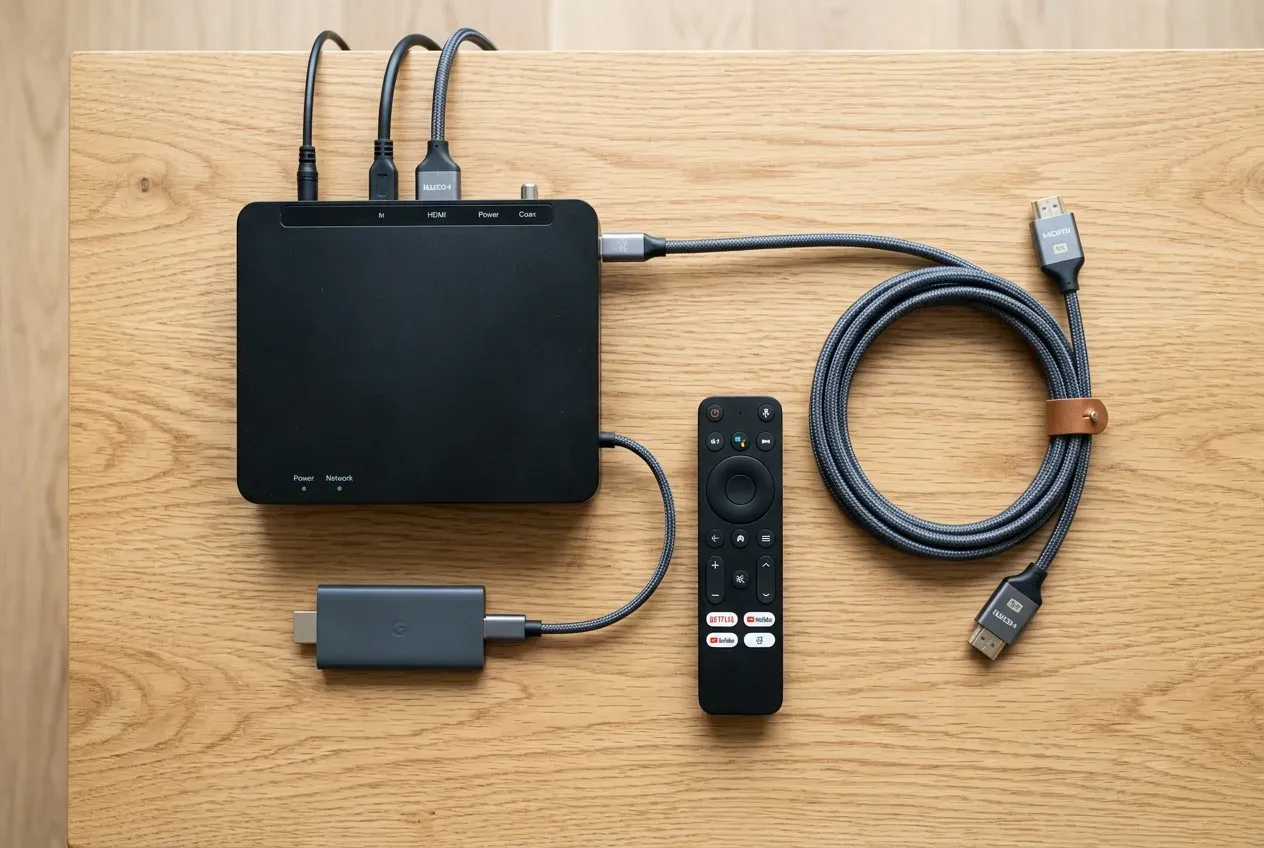
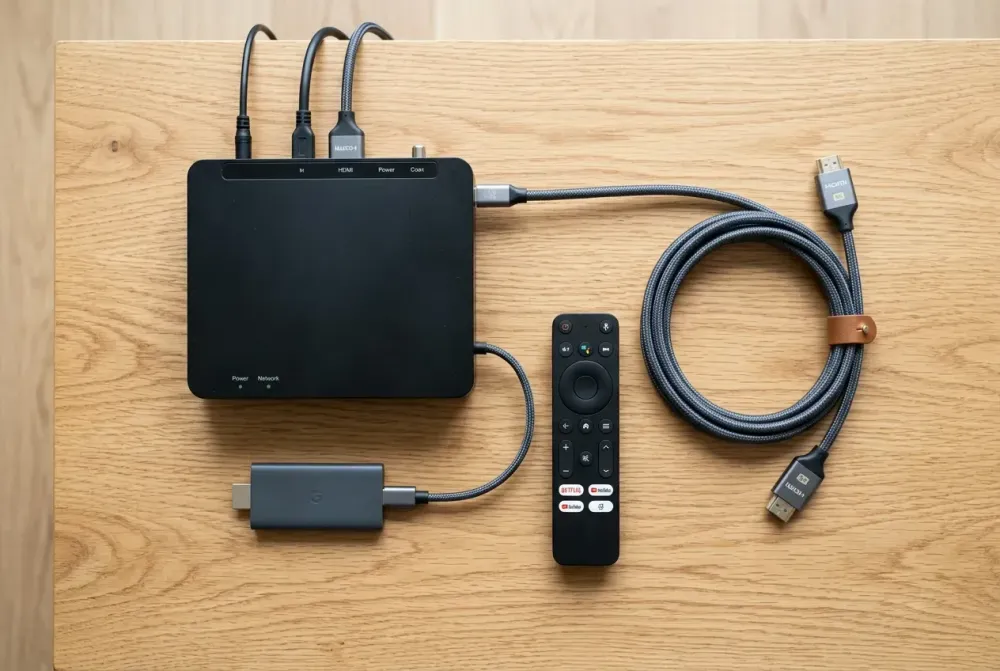
Suggested Alt Text: Cable receivers, streaming stick, remote, and braided HDMI cables neatly arranged on a wooden tabletop
3. How to Connect an Xfinity X1 or Flex Box
An Xfinity X1 or Flex setup includes the TV box, voice remote, coax cable, HDMI cable, and power adapter:
- Connect the Coaxial Cable: Plug the coaxial cable from the wall into the CABLE IN port on the Xfinity box.
- Connect to the TV: Plug an HDMI cable into the HDMI OUT port on the Xfinity box and connect it to an HDMI port on your TV.
- Power On: Plug in the power cable and turn on the TV and box.
- Select Input & Activate: Select the matching HDMI input on your TV. Follow the on-screen prompts or visit `xfinity.com/activate` to pair your Xfinity account and activate your channel package.
4. How to Connect an Amazon Fire TV Stick
The Amazon Fire TV Stick is one of the most popular streaming devices, but it requires proper physical placement and power setup:
- Plug in the Fire Stick: Insert the Fire TV Stick directly into an HDMI port on your TV. If your TV is wall-mounted or space is tight, use the included HDMI extender dongle.
- Connect USB Power: Plug the USB power cable into the Fire Stick and connect the other end to the included AC wall adapter (do not use low-power TV USB ports).
- Select HDMI Input: Turn on your TV and select the HDMI port where the Fire Stick is plugged in.
- Pair the Remote: If the remote doesn't pair automatically, press and hold the Home button for 10 seconds.
- Connect to Wi-Fi & Sign In: Follow the on-screen wizard to choose your Wi-Fi network, enter your password, sign in with your Amazon account, and download your favorite streaming apps.
⭐️ Pro Tip for Wall-Mounted Fire Sticks
Always use the HDMI extender adapter behind wall-mounted TVs. It prevents stress on the TV's HDMI port and improves Wi-Fi antenna reception.
5. How to Connect a Soundbar (HDMI ARC vs. Optical vs. Bluetooth)
Connecting a soundbar enhances your audio experience with clear dialogue and powerful bass. Choose the best connection method available on your equipment:
Option A: HDMI ARC / eARC (Best Option)
- Connect an HDMI cable from the HDMI ARC / eARC port on your TV to the HDMI OUT (ARC) port on your soundbar.
- Enable HDMI ARC and CEC (Consumer Electronics Control) in your TV's audio settings.
- Benefit: Delivers uncompressed Dolby Atmos / surround audio and allows your TV remote to control soundbar volume automatically.
Option B: Optical Audio Cable (Solid Fallback)
- Connect a digital optical cable from the TV Optical OUT port to the soundbar Optical IN port.
- Change the TV audio output setting to Optical / External Speakers.
Option C: Bluetooth (Wireless Connection)
- Set your soundbar to Bluetooth Pairing Mode.
- Open your TV's Bluetooth audio settings and pair the soundbar. (Note: Bluetooth may have slight audio delay on some TV models).
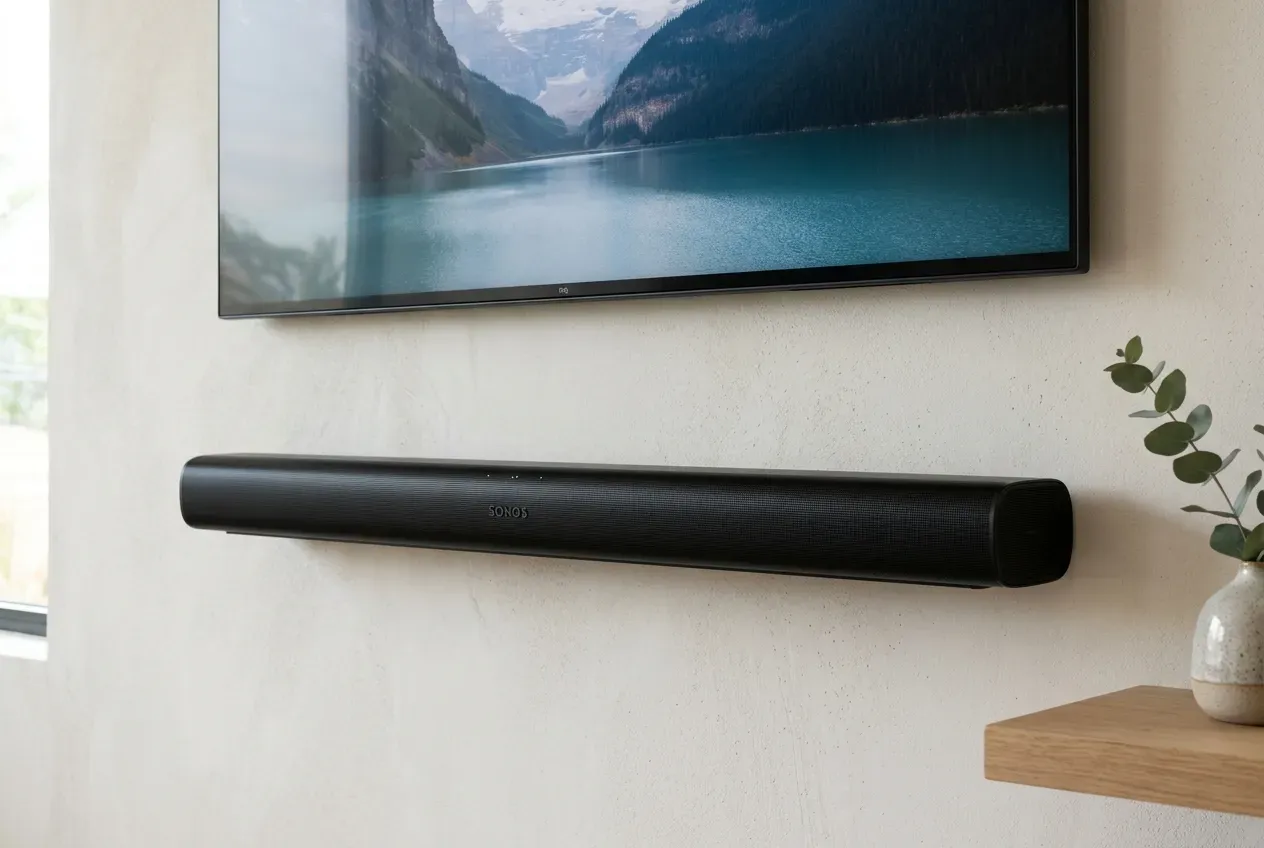
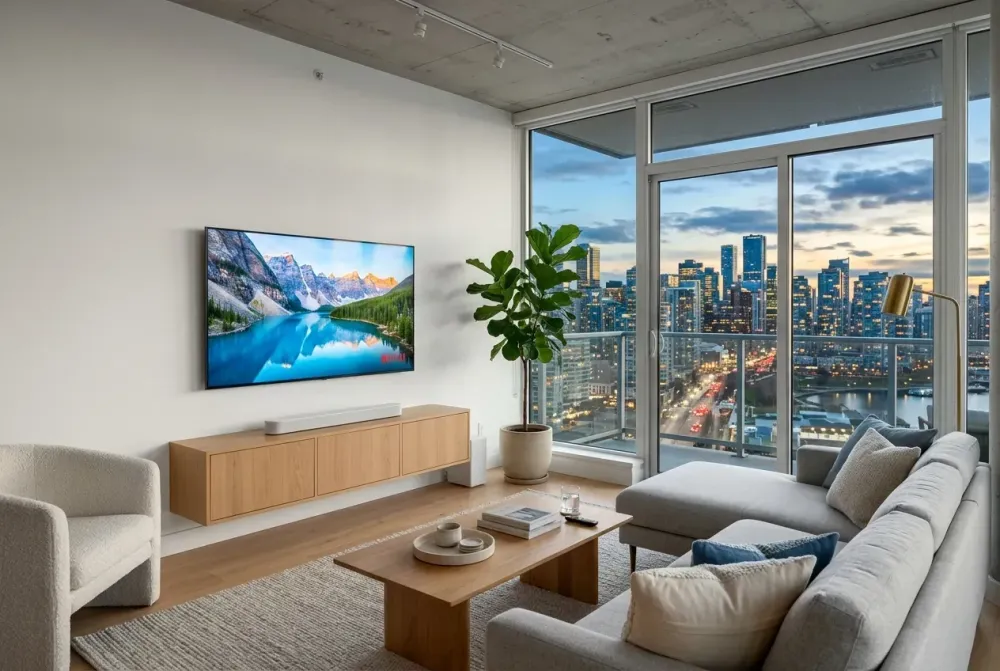
Suggested Alt Text: Sleek soundbar mounted neatly below a flat-screen TV with hidden wires
Hidden Media Devices & In-Wall Cable Concealment
After mounting a TV, the best setup is the one where you see zero messy cables:
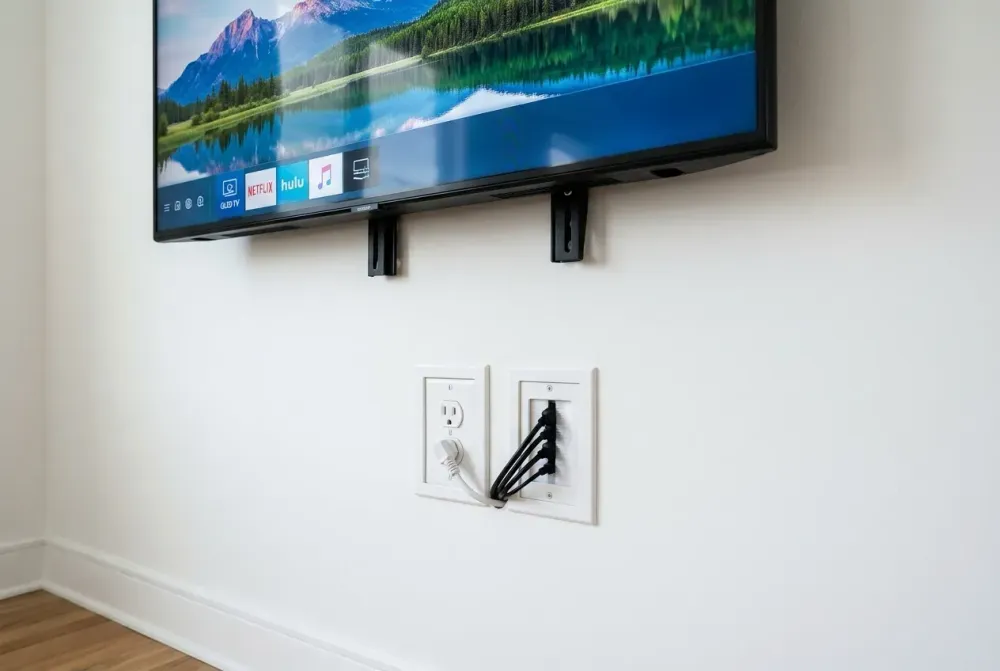
- Recessed Media Boxes: Install a recessed box inside the wall behind the TV to store cable boxes, One Connect boxes, power outlets, and excess wiring out of sight.
- Ventilated Cabinets: If placing cable boxes inside a wooden media console, ensure adequate ventilation so equipment doesn't overheat.
- In-Wall Power Kits: Route power and low-voltage HDMI cables safely through the wall using code-compliant recessed outlet kits.
Troubleshooting Common Connection Problems
- No Picture / "No Signal": Confirm your TV is set to the exact HDMI input port where the device is connected. Ensure the device is powered on and cables are firmly seated.
- No Sound: Check TV audio output settings (switch from Internal Speakers to HDMI ARC or Optical). Confirm soundbar input is set to ARC/Digital.
- Remote Control Not Working: Check batteries. For Bluetooth remotes (Fire Stick, Xfinity Voice), hold the pairing button for 10–15 seconds near the device.
- Buffering / Wi-Fi Drops: Use a Wi-Fi mesh node near your TV setup or connect an Ethernet cable to your streaming device/cable box.
- Activation Stuck: Power cycle the device by unplugging it for 30 seconds, then re-plugging it and restarting activation.
Need Professional TV & Device Setup?
TVPro provides professional TV mounting, device setup, cable concealment, soundbar installation, and complete home theater integration.
FAQ
What devices can TVPro connect after mounting a TV?
TVPro can assist with connecting Spectrum boxes, DIRECTV receivers, Xfinity X1/Flex boxes, Amazon Fire TV Stick, Apple TV, Roku, soundbars, gaming consoles (PlayStation, Xbox), and AV receivers.
Can a cable box be hidden behind a wall-mounted TV?
Yes, depending on the device size, remote technology (RF/Bluetooth vs. IR line-of-sight), ventilation, and wall clearance. Recessed media boxes are an ideal solution.
How do I connect a Fire TV Stick to a wall-mounted TV?
Plug the Fire TV Stick into the HDMI port using the HDMI extender adapter, connect it to wall power, select the corresponding HDMI input on your TV, connect to Wi-Fi, and sign in.
Why does my TV say "No Signal"?
The most common causes are an incorrect HDMI input selection on the TV remote, a loose HDMI cable, a powered-off receiver, or a device undergoing an automatic channel/firmware update.
Can TVPro hide wires for all my devices?
Yes! TVPro specializes in in-wall wire concealment, recessed media box installation, cable management, and surface raceway routing to keep your entertainment space clean and clutter-free.